How I Use Posterous
After kicking the idea around for a while, I finally decided to sign up and give Posterous a try. For those of you who are not familiar with Posterous, it’s a simple blogging platform that allows you to post anything to the Web using e-mail. Simply send an e-mail to post@posterous.com including content such as text, documents, photos, videos, music, or audio and Posterous will take care of the rest.
The reason I decided to use Posterous is because it bridges the gap between Twitter and my WordPress blog. There’s a lot going in the space between Twitter and a full length blog so I felt it was necessary to have space where I can post content that exceeds the 140 character limit and falls short of my formal WordPress content.
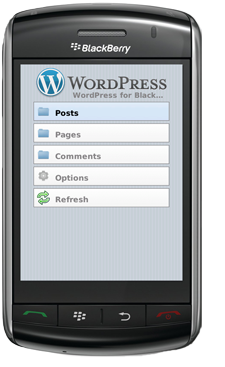
WordPress for Blackberry Version 1.0 Released
WordPress announced today that beta testing for the WordPress for BlackBerry app is complete and version 1.0 is now available in BlackBerry App World. WordPress for BlackBerry 1.0 has been in beta for more than six months, but version 1.0 adds support for VideoPress, improved commentening, and a spot in BlackBerry App World. What can you do with the WordPress for BlackBerry app? WordPress for BlackBerry is pretty awesome if you want to blog while you are on the move. The app allows you to write posts, edit pages, manage comments, and upload photos and videos.
Although I don’t have a lot of time to blog, I really like the idea of having an app on my BlackBerry that will allow me to blog whenever I have the urge. I went ahead and installed WordPress for Blackberry on my Tour and it works like a charm. I’m not sure how often I will use the app to create a new blog post or edit existing pages, but it’s nice to know that there is a feature that will allow me to do it. I really like the fact, however, that I can approve, delete, or put a hold on new comments because that is always an annoying task.
How to create WordPress Pretty Permalinks on IIS / WHS
Soon after I installed WordPress on my Windows Home Server (WHS) which runs IIS I realized my permalink options were limited since IIS does not support mod_rewrite. I definitely wanted to produce Pretty Permalinks, therefore, I spent some time searching plausible solutions that would mimic mod_rewrite capabilities so I could accomplish this goal. What I found were several workaround tutorials that explained how to create 404 redirects while others provided instructions on how to use PHP and INI files in association with a ISAPI Rewrite Filter. Nonetheless, I was not interested in going through all the tedious steps in these workarounds so I continued doing my homework. Thanks to a project on Google Code I was able to find a solution that works perfectly and only takes minutes to implement.
Before I take you through the steps let me back up a minute for those of you who are not familiar with Pretty Permalinks. Permalinks are the permanent URLs to individual blog posts, as well as archives, categories, and other blog postings. According to WordPress, “Pretty Permalinks is the idea that URLs are frequently visible to the people who click them, and should therefore be crafted in such a way that they make sense, and not be filled with incomprehensible parameters.” For example, if you choose the permalink “Month and Name” option it would produce a URL that would look like this:
Adding space between reCAPTCHA and the comment Submit Button on WordPress
When I embedded reCAPTCHA into my WordPress blog the first thing I noticed was that reCAPTCHA was sitting directly on top of the “Submit Comment” button without allowing any breathing room between the two. The appearance was rather obtrusive so I decided to do a quick search for a solution using my buddy, “Google.” Normally I would muck around with the code myself and call it a day, but I figured there was someone who already found a fix and shared it with the rest of us. As it turns out, there are many forum discussions about this same exact issue and several on the WordPress forum, yet no solutions were ever posted.
So, after wasting a few minutes searching for a solution, I decided to look through the code so I could figure out how reCAPTCHA was embedded into the comment section of the blog and attempt to correct its placement. My first instinct was to add a simple “break (<br/>)” tag in the comments.php file, above the “Submit Comment” button code, so this way it would add some space. However, this edit was unsuccessful and I quickly realized the only way to make this work was by combing the reCAPTCHA PHP file and looking for the correct section in the code to add a “<br/>” tag. After I opened the reCAPTCHA PHP file it did not take more than a minute to figure out which section needed the “<br/>.”